A branded background turns every Teams call into a small brand moment. Learning how to add a logo to your Microsoft Teams background takes a couple of minutes once you know where the option lives, and Teams hides it in a place that trips people up. This guide covers the desktop steps, the file specs Teams actually wants, an org-wide rollout for IT teams, and the fixes for the missing Add new button.
Add a Custom Teams Background on Desktop
Teams keeps custom background uploads inside the video effects panel, and you reach it from within a meeting rather than from the main settings. Here is the path on the Teams desktop app for Windows and Mac.
- Join or start a meeting. You can also use the pre-join screen before you connect.
- Turn your camera on first. If the camera is off, the background options may not appear at all.
- Click the three-dot More menu in the meeting controls, then choose Video effects (some versions label this Effects and avatars).
- Scroll the background panel to Add new and select your branded image file from your computer.
- Click your new background to load it into the live preview, then choose Apply to set it before joining, or apply it mid-call from the same panel.
Once a background is uploaded, it stays in your gallery for future calls, so you only add it once. If you want to swap it mid-meeting, reopen the same Video effects panel and pick a different image.
File Specs Teams Actually Wants
A custom Teams background with a logo only looks sharp if the file itself is built right. Teams is pickier about file size than Zoom, so the format you save matters.
- Resolution: 1920x1080 pixels at a 16:9 aspect ratio. This is standard HD and matches how Teams frames your video.
- File size: Teams has an effective limit around 2MB. A full-resolution PNG can blow past that, so convert it to JPEG at 85 to 90 percent quality. The drop in quality is invisible on camera, and the smaller file uploads cleanly.
- Format: JPEG is the safe, reliable choice for a photographic office scene with a logo rendered into it.
- Safe area: keep your logo or sign inside the central 80 percent of the frame. Teams crops the outer edges depending on the layout, so anything near a corner is at risk.
The most common mistake is grabbing a stock office photo, pasting a tiny logo file into a corner, and letting Teams stretch it. A small logo blown up to fill an HD frame turns soft, and the seam between the photo and the pasted logo shows on camera. Start with a true 1920x1080 image where the logo is rendered at full resolution from the beginning.
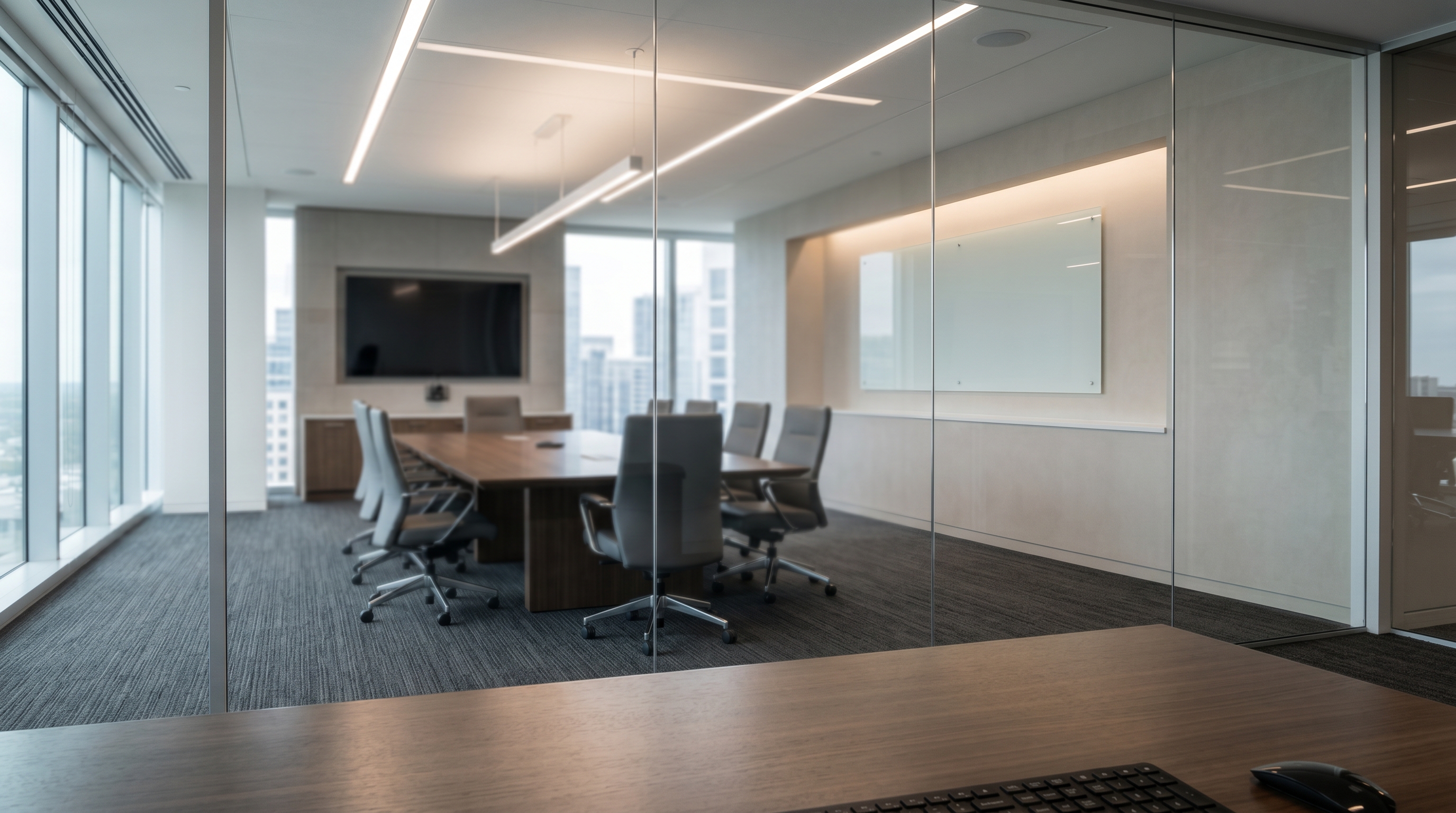
Why Corner Logos Get Cut Off on Teams
Teams does not show your background as a fixed rectangle. It reframes the image for different layouts, including speaker view, gallery view, and the smaller tiles you get when many people join. Each layout can shave a different amount off the outer edges.
That is bad news for the classic corner-logo approach. A logo parked in the top corner of a flat overlay can sit perfectly in your preview, then vanish from the visible frame the moment the layout changes or someone pins a different speaker. You end up branding a part of the image that other people never see.
The fix: an in-scene sign mid-wall
A dimensional sign placed in the middle of the wall solves this. Because it lives in the central, always-visible part of the frame, it survives every Teams layout. It is also rendered as a real object in the room, so it follows the wall's perspective and picks up the room's lighting instead of floating on top as a flat sticker. That is a built-in reason to skip the corner-overlay approach entirely.
This is exactly what we build at LogoWalls. You pick an office scene, upload your logo, and we render it into the room as a real sign matched to that room's angle and lighting, delivered as a ready-to-upload HD file.
Rolling a Branded Background Out Org-Wide
If you run a Microsoft 365 shop, you do not have to rely on every employee uploading the right file. IT admins can push approved background images to the whole organization so everyone shows the same on-brand scene.
- Sign in to the Teams admin center as an admin and open Meetings, then Meeting policies.
- Choose the policy you want to edit, or create a new one for the groups that should get the branded background.
- Enable the option to use background images from my organization and add your approved branded scenes.
- Assign the policy to the right users or groups and save. Employees see the approved scene in their Video effects panel, ready to apply.
One approved scene keeps every employee consistent on camera without anyone hunting for a file or making their own version. It maps cleanly to the kind of walls teams reach for most. A consulting firm might standardize on the Glass Boardroom scene, while finance, medical, and boardroom roles each have a matching catalog wall that reads as serious and on-brand.
Troubleshooting: No Add New Button
The single most common Teams complaint is that the background controls are missing or the Add new option never appears. If your Teams background is not showing Add new, work through these causes in order.
- You are on the web app. Teams on the web does not support custom uploads. Only the desktop app lets you add your own images, so switch to the desktop client.
- Your camera is off. At the pre-join screen and in a meeting, turn your camera on first. The background options often stay hidden while the camera is off.
- An org policy blocks it. Your admin may have disabled custom backgrounds in the meeting policy. If the option is greyed out or missing on the desktop app, check with IT.
- Your app is outdated. Update Teams to the latest version, since older builds handle background effects differently or not at all.
If you still cannot upload but custom backgrounds are allowed, there is a manual fallback. Close Teams, then drop your image directly into the Teams Backgrounds folder on your computer (on Windows this lives under your user AppData path for Teams, in the Backgrounds and Uploads folder). Reopen Teams and the image appears in your Video effects gallery. This is a workaround, not the primary method, so try the in-app steps first.
The Same File Works Everywhere
Because a Teams background is a standard 1920x1080 16:9 image, the same file works across Microsoft Teams, Zoom, and Google Meet. Build one branded scene, then upload it to each platform's background settings and your brand stays consistent no matter where the meeting happens.
The takeaway is simple. Use the desktop app with your camera on, save your file as a 1920x1080 JPEG under 2MB, and keep the logo in the central 80 percent so Teams never crops it. Better still, skip the flat corner overlay and use a dimensional in-room sign that survives every layout and looks like a real branded office behind you.