If you run client calls or sales demos, your background is doing marketing whether you planned it or not. The good news is that learning how to add your company logo to a Zoom virtual background takes about two minutes. The catch is that doing it well, so the logo looks like part of the room instead of a sticker, takes a little more thought. This guide covers both.
Add a Logo Background in Zoom: The Exact Steps
Zoom keeps virtual backgrounds in the desktop app settings, not in the in-meeting menu where most people go looking first. Here is the exact path on the Windows and Mac apps.
- Open the Zoom desktop app and sign in. Click your profile photo in the top-right corner, then choose Settings.
- In the left sidebar, click Backgrounds & Filters (older versions call this Virtual Background).
- Click the small plus (+) icon above the thumbnail row, then choose Add Image.
- Select your branded background file from your computer. It loads into the gallery and applies to the live preview right away.
- Check the preview. If your logo or text reads backwards to you, scroll down and turn off Mirror my video. Remember that mirroring only flips your view, so other people already see it correctly.
You can also swap backgrounds mid-call. In a meeting, click the small up-arrow next to the Stop Video button, then choose Choose Virtual Background to open the same gallery.
The Right Size and Format for a Zoom Background
A custom Zoom background with a logo only looks professional if the file itself is high quality. Zoom recommends a specific size and format, and sticking to it is the difference between a crisp brand mark and a fuzzy smear.
- Resolution: 1920x1080 pixels at a 16:9 aspect ratio. This is standard HD and matches how Zoom frames your video.
- File type: JPG, 24-bit PNG, or GIF. JPG is best for photographic office scenes; PNG suits flat graphics with sharp edges.
- File size: keep it under 5MB so it uploads cleanly and loads fast.
- Safe area: keep important detail, including your logo, within the central 80% of the frame so nothing gets cropped on a different aspect ratio.
Here is the most common mistake. People grab a stock office photo, drop a tiny logo file in the corner, and let the app stretch everything to fit. A 400-pixel logo blown up to fill an HD frame turns soft and pixelated, and the seam between the photo and the pasted logo is obvious on camera. Start with a true 1920x1080 image where the logo is rendered at full resolution from the beginning.
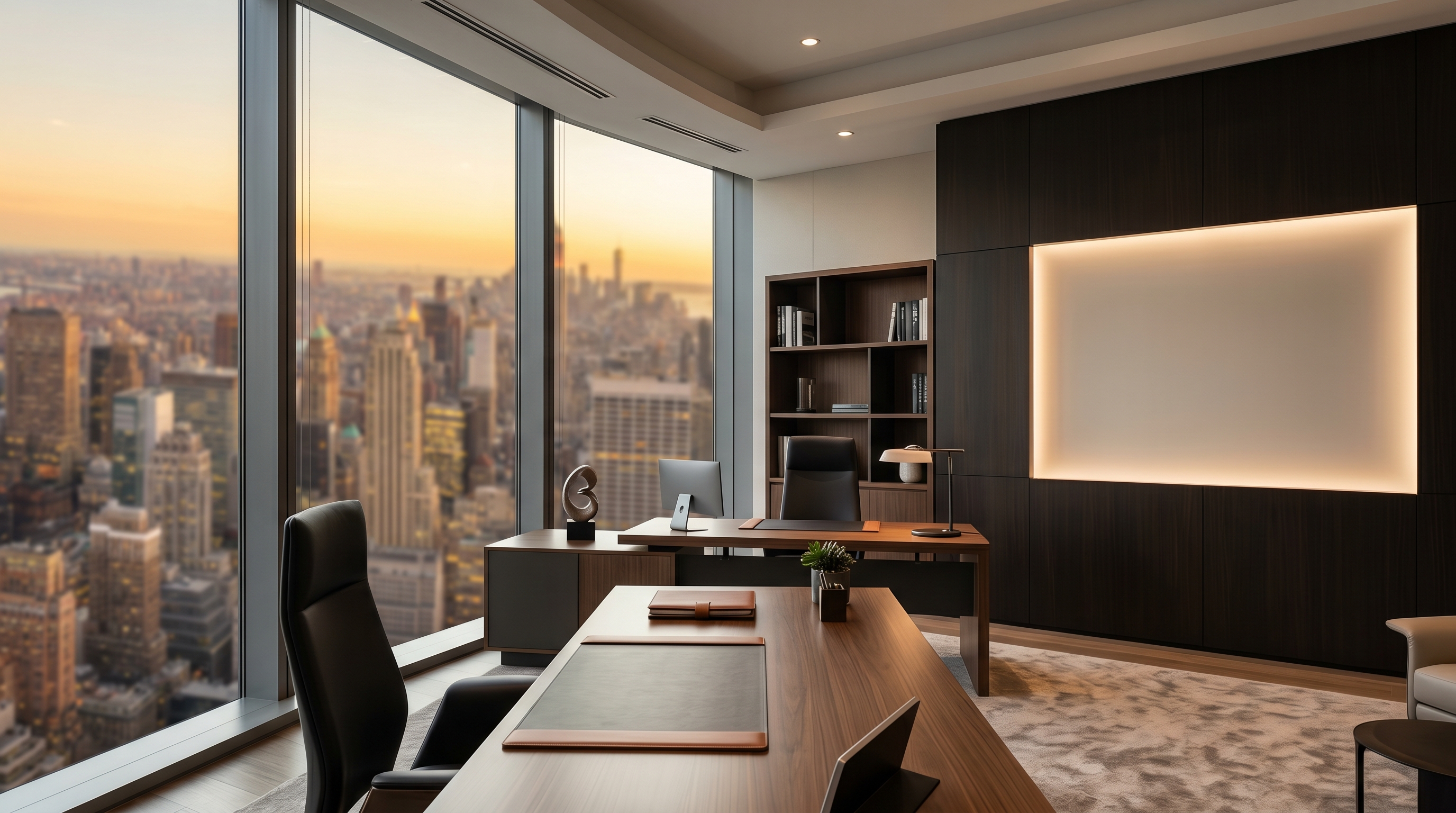
Flat Overlay vs. Dimensional Sign: Why It Matters
Most branded Zoom backgrounds are a flat logo PNG dropped onto a photo. It is quick, but on camera it reads as exactly what it is: a graphic stuck on top of an image. The logo ignores the room. It sits at the wrong angle, it does not catch the light from the window, and it casts no shadow. Your eye notices the mismatch even if you cannot name it.
A dimensional sign solves this. Instead of a flat overlay, your logo is rendered as a real object in the room, such as backlit metal letters on the wall, an etched glass panel, or a lobby sign. It follows the room perspective, so it leans with the wall instead of facing dead-on. It picks up the same lighting as the rest of the scene. It even throws a soft shadow where a real sign would.
What this looks like in practice
Compare two versions of the same call. In the first, a logo floats in the corner over a stock photo and you look like you are sitting in front of a virtual background. In the second, the logo is a brushed-metal sign mounted on the wall behind you, lit by the room, and you look like you are sitting in a branded office. That second impression is the one that builds trust on a sales or client call.
This is the core of what we build at LogoWalls. You pick an office scene, upload your logo, and we render it into the room as a real sign matched to that room's angle and lighting, delivered as a ready-to-upload HD file.
Where to Place Your Logo So It Survives a Talking Head
Placement matters more than people expect, because you are not a still photo on the call. You move, you gesture, and Zoom adds its own controls on top of the frame. A logo in the wrong spot disappears the moment the meeting starts.
- Avoid the lower center. Your head and shoulders sit there, and Zoom's meeting toolbar can cover the bottom edge. Anything placed low gets blocked.
- Favor the upper corners or mid-wall. A sign above shoulder height, off to one side, stays visible while you talk and move.
- Keep contrast high. A light sign on a darker wall, or a dark sign on a light wall, stays legible after video compression flattens the colors.
- Test with your real webcam framing. Judge placement from the live video, not the flat image, since your body covers part of the scene.
On the Minimalist Studio wall, for example, the sign is anchored on the accent wall to one side, so it stays clear of your head and the call controls while you talk.
DIY vs. Done-For-You: When to Skip the Fiddling
There are three honest ways to get a branded Zoom background, and each fits a different situation.
- Budget overlay shops. Some sellers will drop your logo onto a stock photo for a few dollars. It is cheap, but you usually get a flat corner logo, slow turnaround, and a result that reads as pasted on.
- DIY in a design tool. You can build your own in Canva or similar. It works if you have design skill and time, but a flat logo on a 2D scene still looks stuck on once your webcam compresses it.
- Done-for-you dimensional signs. LogoWalls renders your logo as a real sign inside one of 14 professional office scenes, matched to the room's perspective and lighting, starting at $49.99 per wall and delivered as a 1920x1080 HD file you upload straight into Zoom.
The same file works everywhere. Because it is a standard 1920x1080 16:9 image, you can use one branded background across Zoom, Microsoft Teams, and Google Meet. Upload it once to each platform's background settings and your brand looks consistent no matter where the meeting happens.
Whichever route you choose, the goal is the same. You want to walk into a call looking like you are sitting in a real, branded office, not like you switched on a virtual background two minutes before the meeting. Get the size right, place the logo where it survives a talking head, and use a dimensional sign instead of a flat overlay.